Save web pages as clean, searchable PDFs
Save any web page as a clean PDF with date, title, URL and page numbers — even when Ctrl+P mangles it.
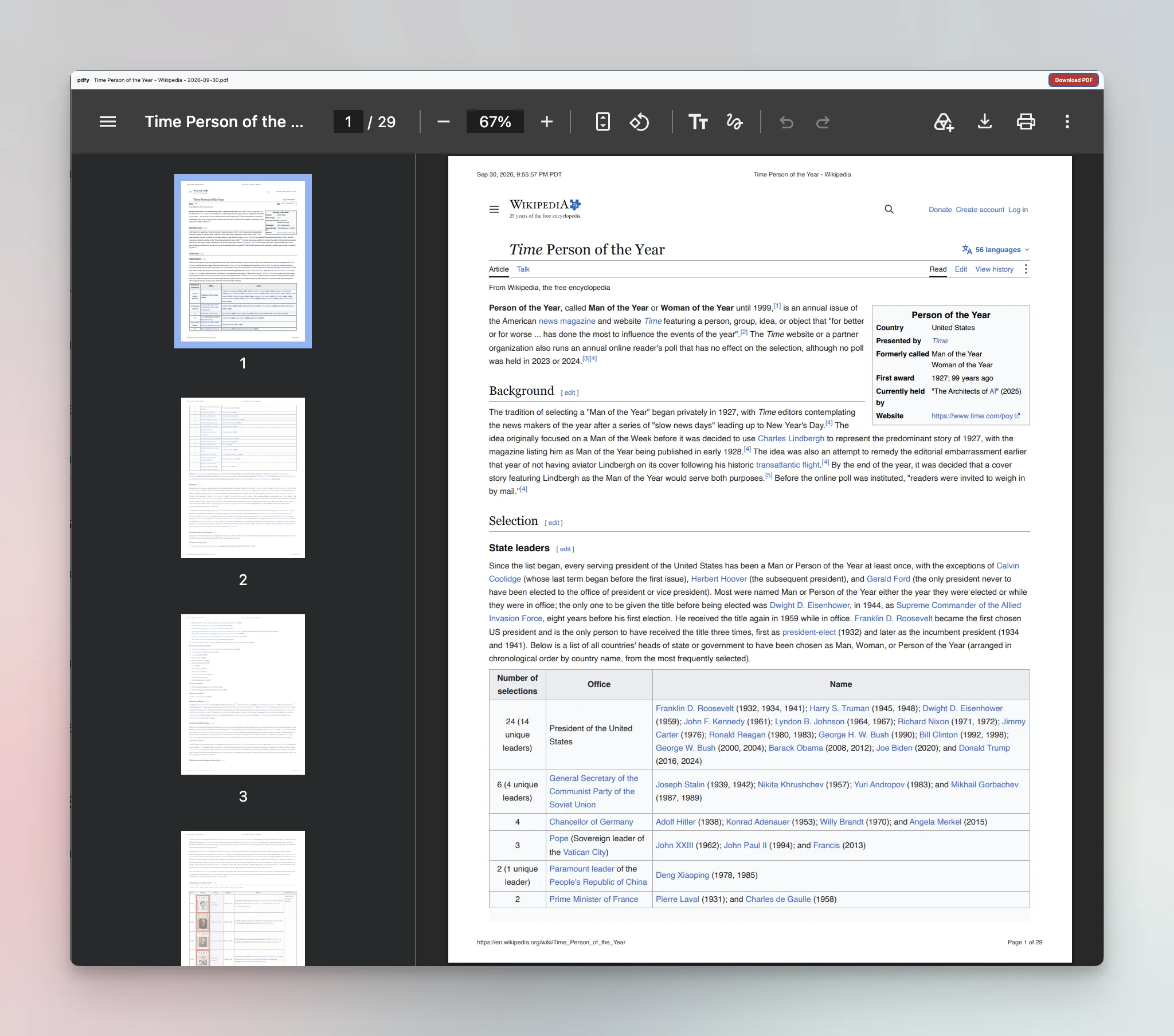
When Ctrl+P mangles the page.
The print dialog was built for documents, not web apps. pdfy fixes the usual ways it goes wrong.
The whole page
Scrolling panels expand, so app-style pages print in full.
The desktop layout
Laid out at your window’s width, then shrunk to fit the paper.
All the content
Lazy images load and collapsed sections open before saving.
Headers stay put
Fixed headers and sidebars print once, where they belong.
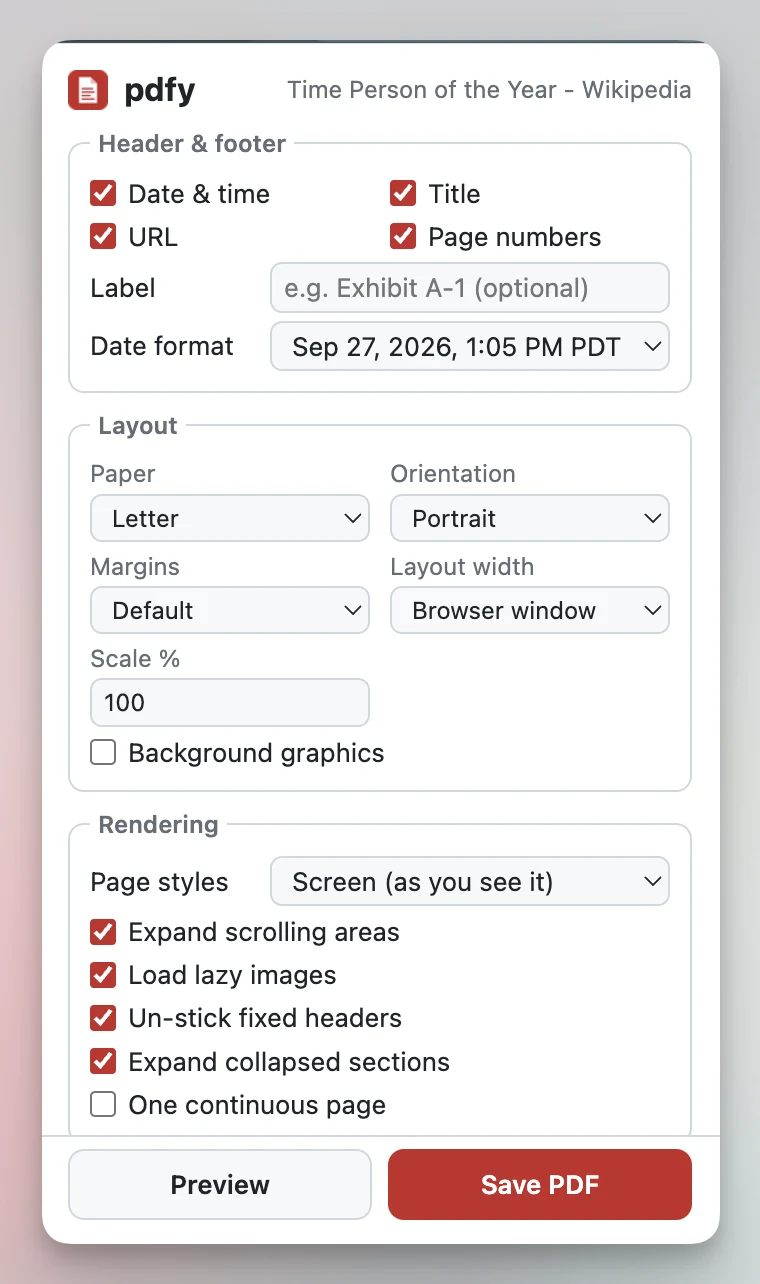
Date, title, URL and page numbers. On every page.
The same header and footer as Chrome’s print dialog, so every PDF shows where and when it was captured. Good for receipts, research and web evidence.
- Full URL, never cut off. Long addresses wrap instead of getting truncated.
- Optional label in the corner, like “Exhibit A-1”.
- Capture time with time zone, in long or ISO format.
PDFs you can actually use.
pdfy uses Chrome’s own PDF engine, so text stays selectable and searchable, and links stay clickable.
Save or preview
Open pdfy on any page and choose Save PDF or Preview. Files are named Page title - YYYY-MM-DD.pdf.
Press Alt+Shift+P
Saves the current tab right away with your remembered settings.
Your paper, your way
Paper size, margins, scale, screen or print styles, PNG pages, or one continuous page.